How to use MainMind
Everything MainMind can do, grouped by task — from signing in to billing and closing your account.
Getting started
Is there a separate sign-up?
No. You sign in with your Google account, and the account is created on first sign-in. There is no separate password to set or remember.
Do I need to import anything?
No. Your maps live in your MainMind account. A new account starts with an empty workspace — add your first node and the map grows from there.
What is the first screen?
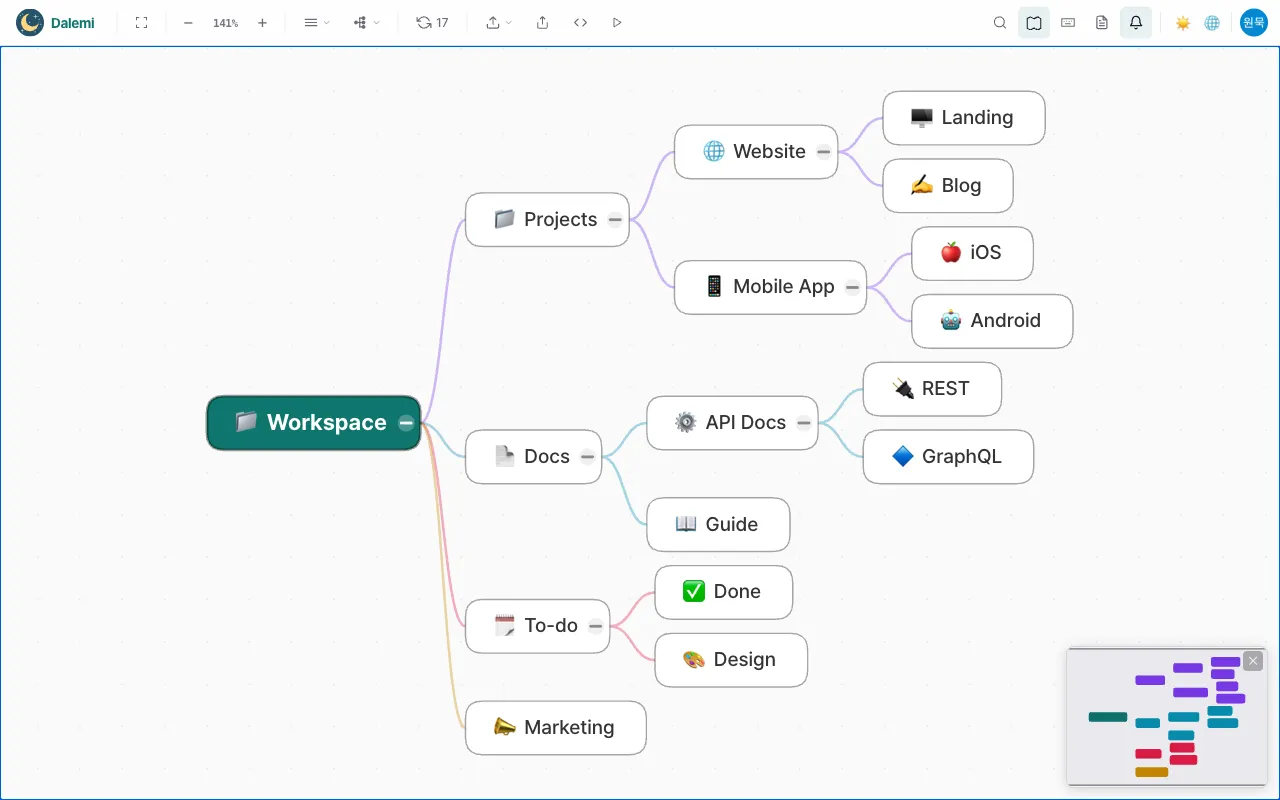
The workspace map — every top-level node in your account, drawn as one mind map. It is the starting point for everything else.
Can I open a single page as its own map?
Yes. Any node's subtree can be opened as its own map, with its own layout and camera.
Editing the map
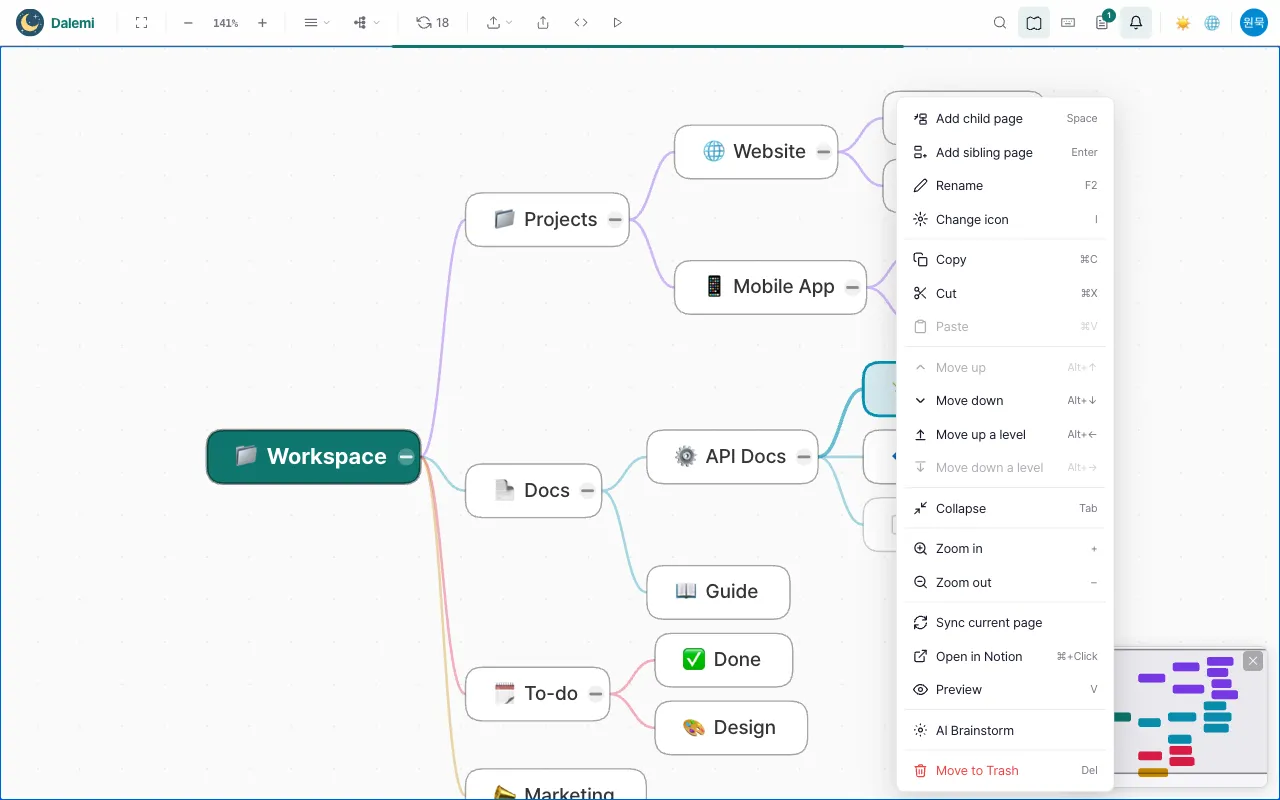
Add a child page
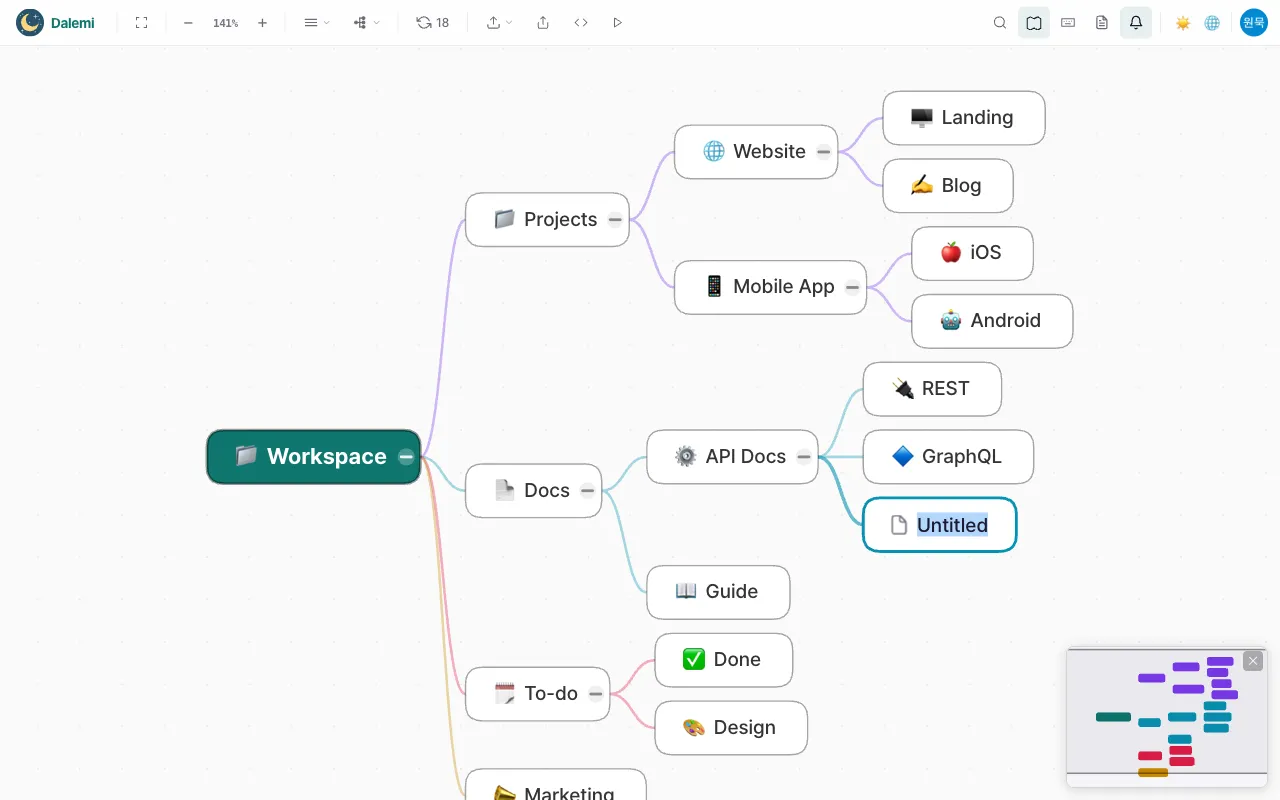
Select a node and press Space. A new sub-page is created under it, and the name you type is saved to your account.
Add a sibling page
Select a node and press Enter. The new page is created next to it, under the same parent.
Rename a page
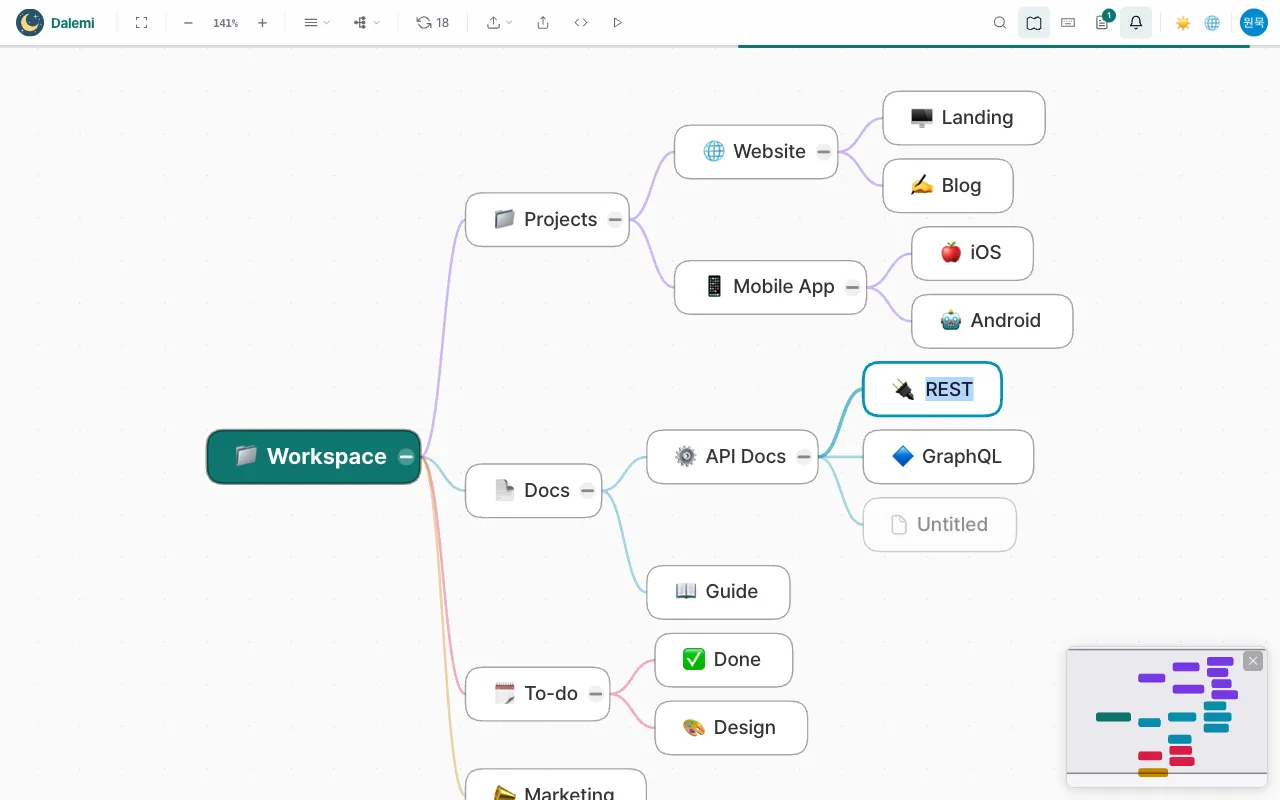
Press F2, or double-click the node. The title changes as soon as you confirm.
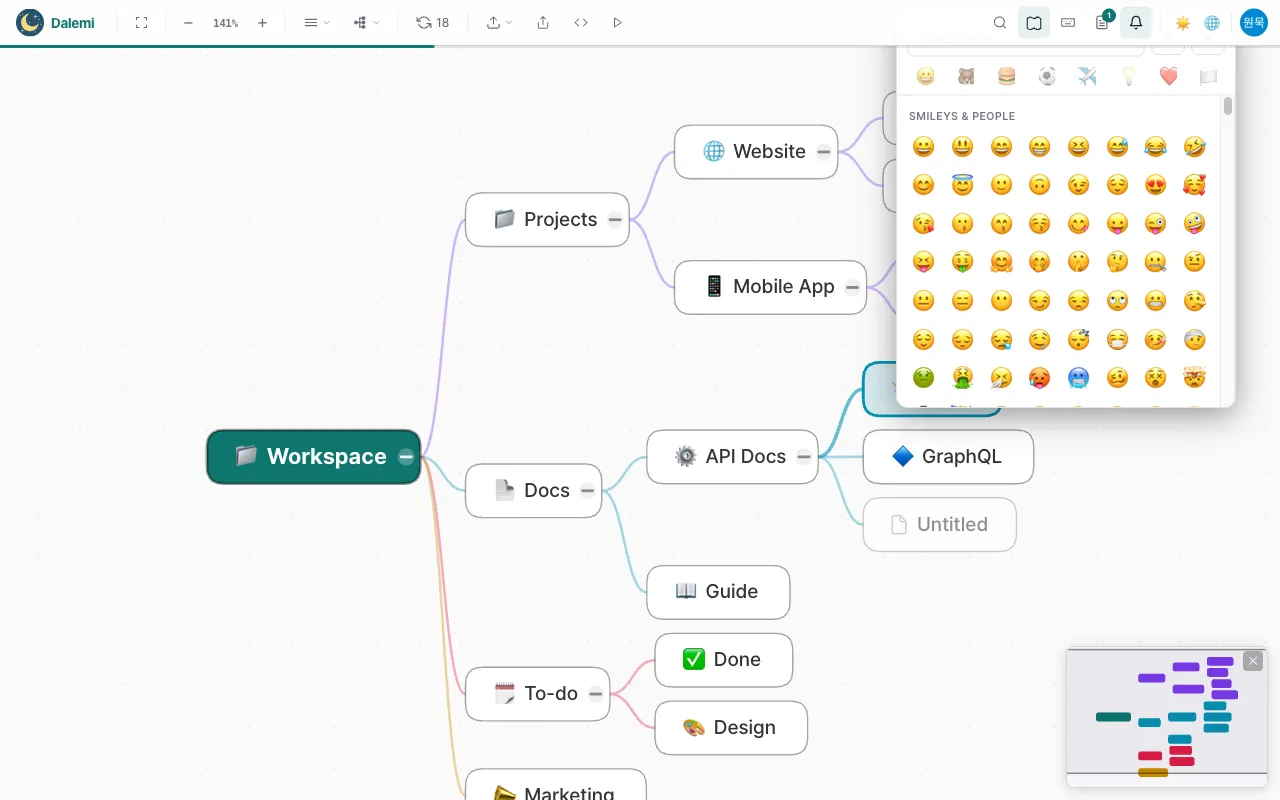
Change the icon
Press i with a node selected and pick an emoji. Clearing it removes the icon.
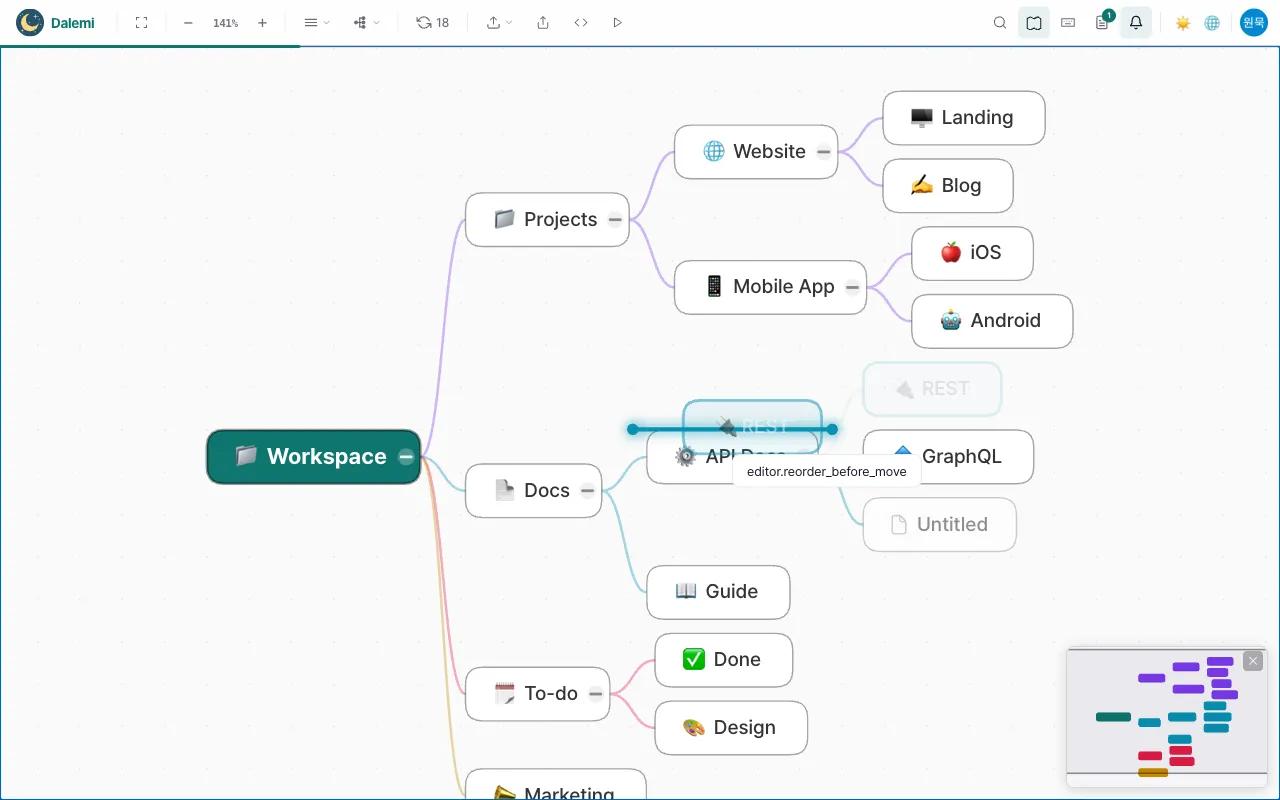
Move a page or reorder siblings
Drag a node onto another to re-parent it, or drop it between two siblings to change the order. Alt+↑ and Alt+↓ move a node within its parent without the mouse.
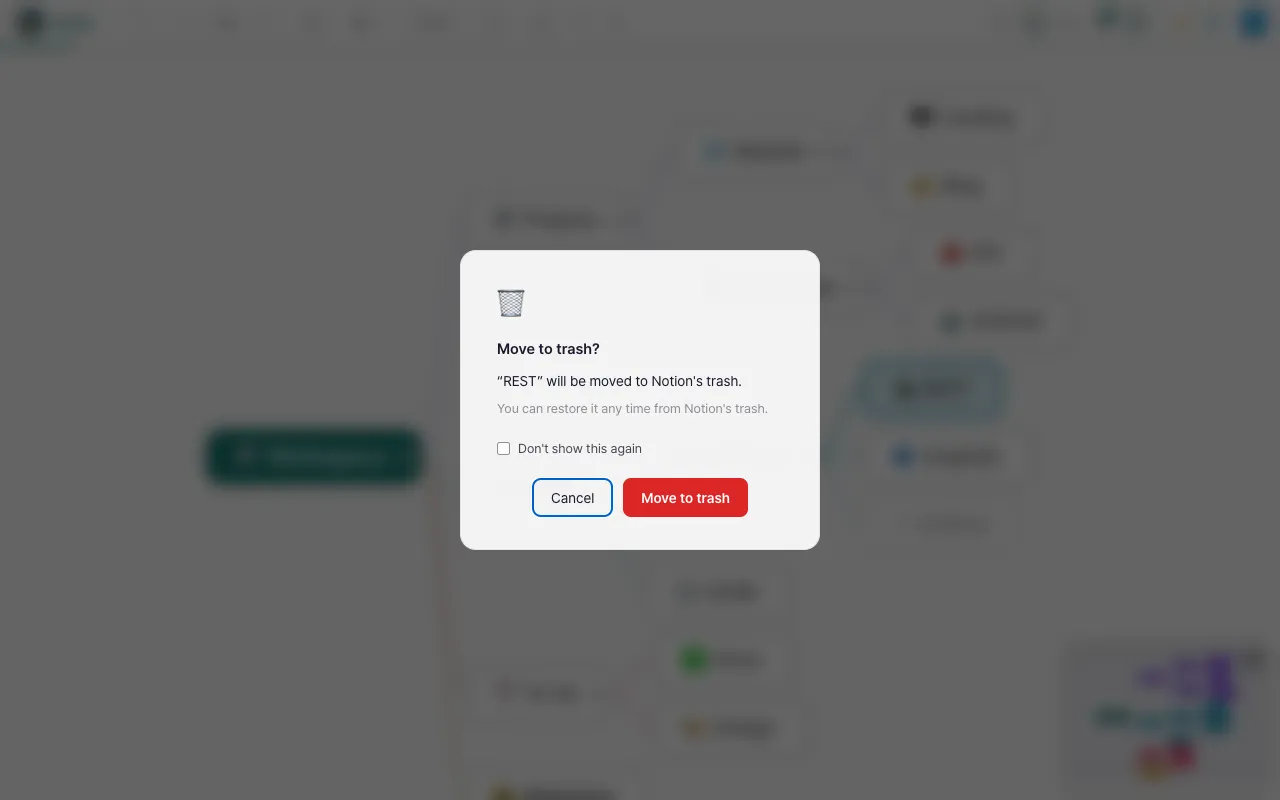
Delete a page
Deleting asks you to confirm, then moves the page to the trash. Nothing is lost — if you change your mind, restore it from the trash.
Copy, cut and paste
⌘C / ⌘X / ⌘V (Ctrl on Windows) duplicate or move a page together with its sub-pages. Pasting creates real copies.
Expand ideas with AI
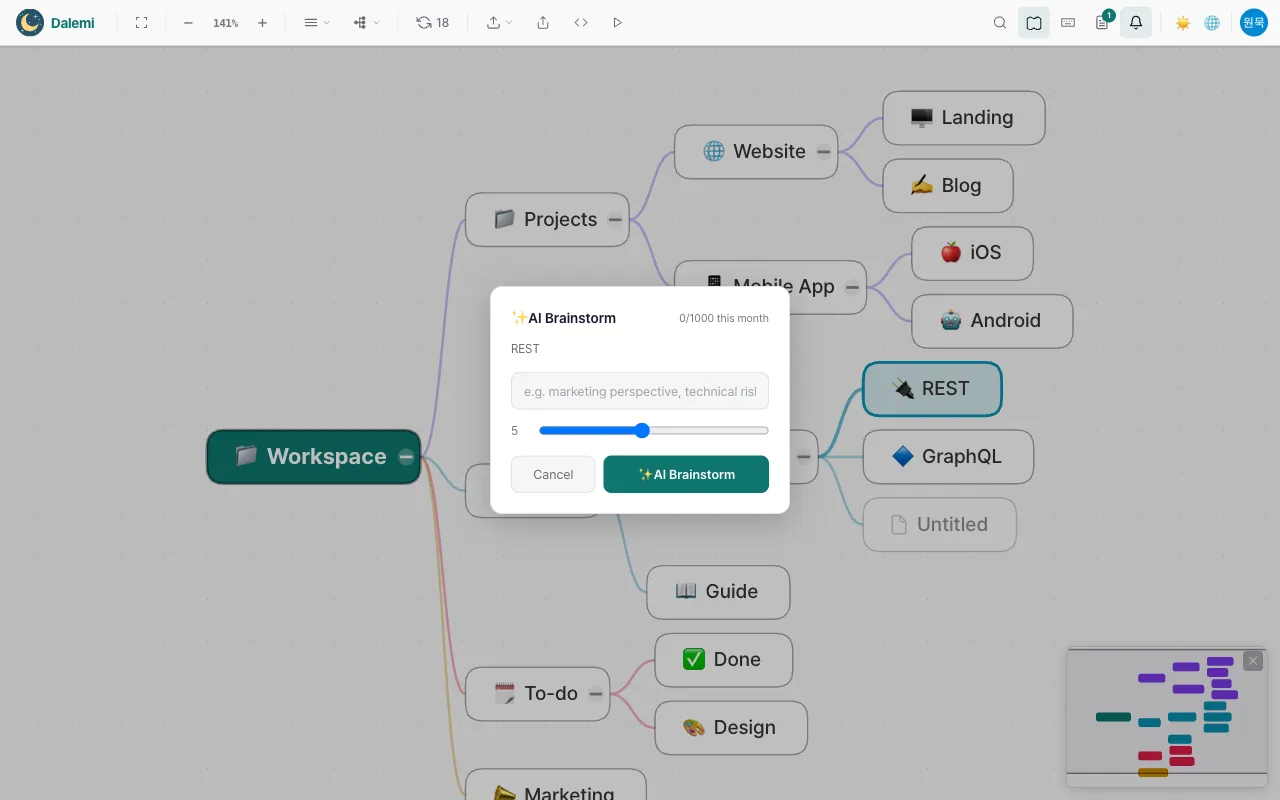
Right-click a node and choose AI brainstorming to have MainMind create as many follow-up sub-pages under it as you ask for. Add a line about the angle you want and the suggestions follow it.
Viewing and navigating
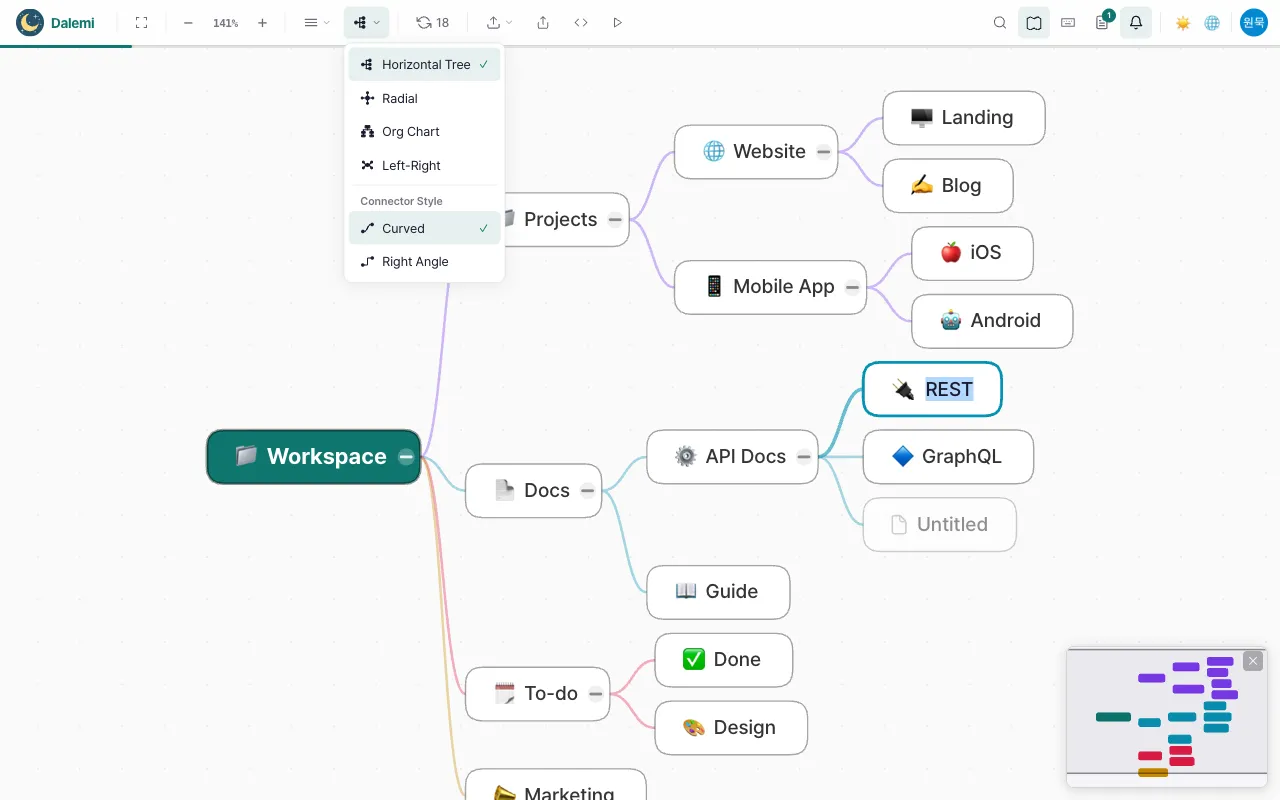
Four layouts
Tree, radial, org chart and left-right split. Free plans use the tree layout; paid plans can switch between all four.
Connector style
Choose curved or right-angled connectors. Radial always draws straight lines because parent and child sit along the same ray, so there is no axis to bend.
Collapse and expand
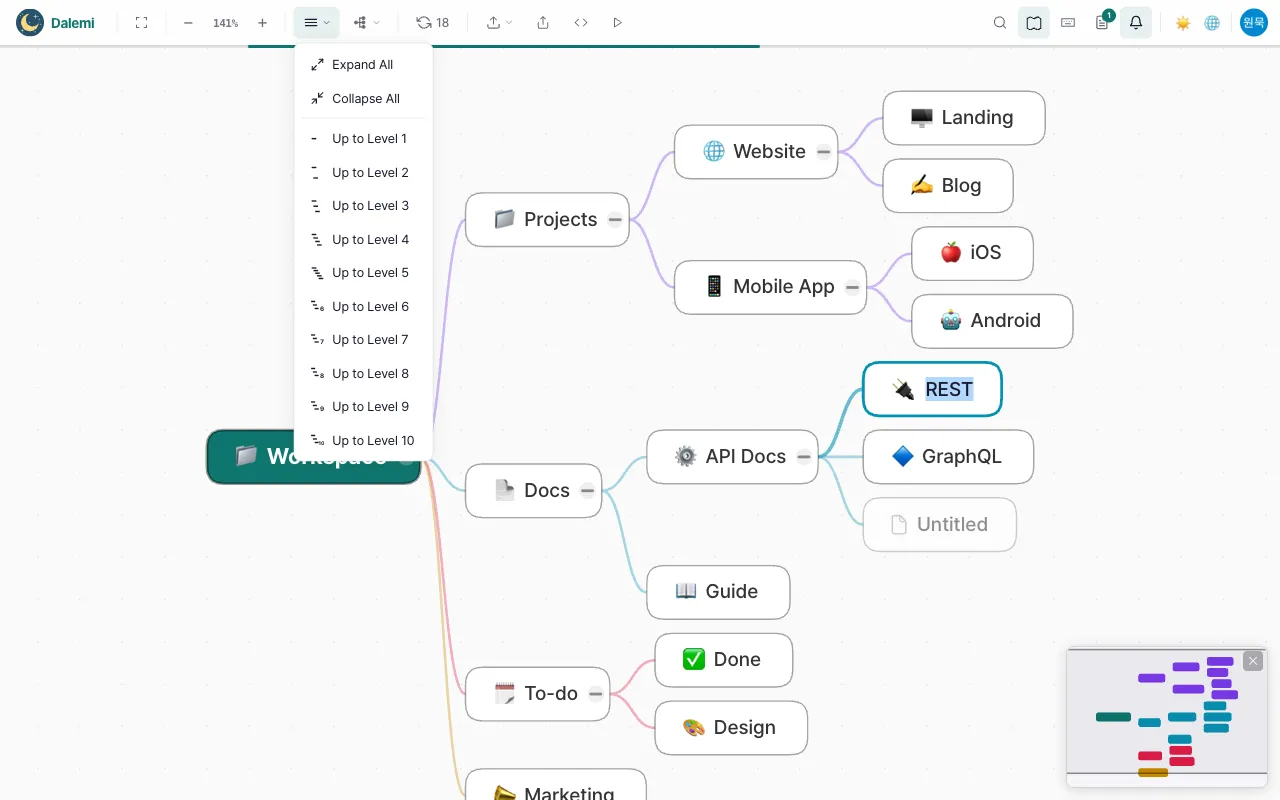
Click the circle on a node's edge to fold its children. The toolbar can collapse everything, expand everything, or expand to a chosen depth.
Zoom and fit
Scroll or use +/- to zoom, and press the fit button to bring the whole map into view. Your zoom and position are remembered per map.
Find a page
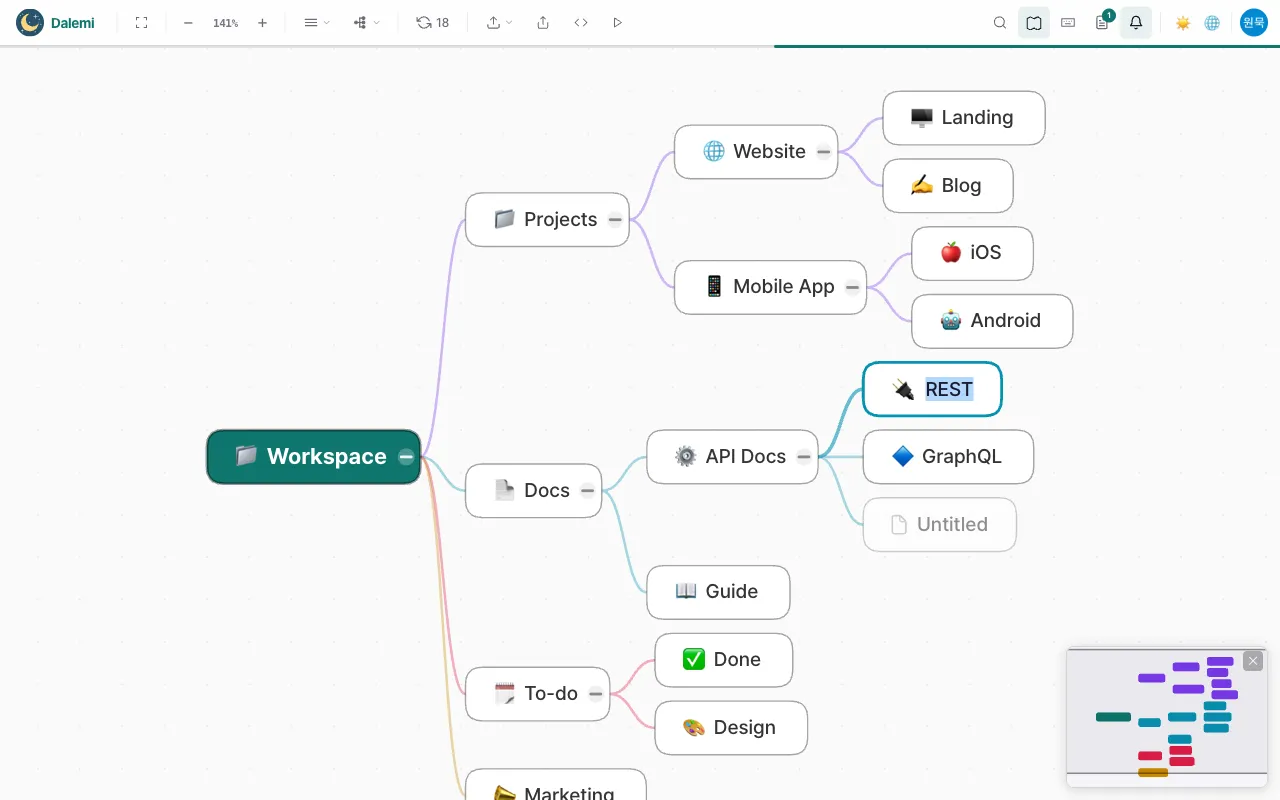
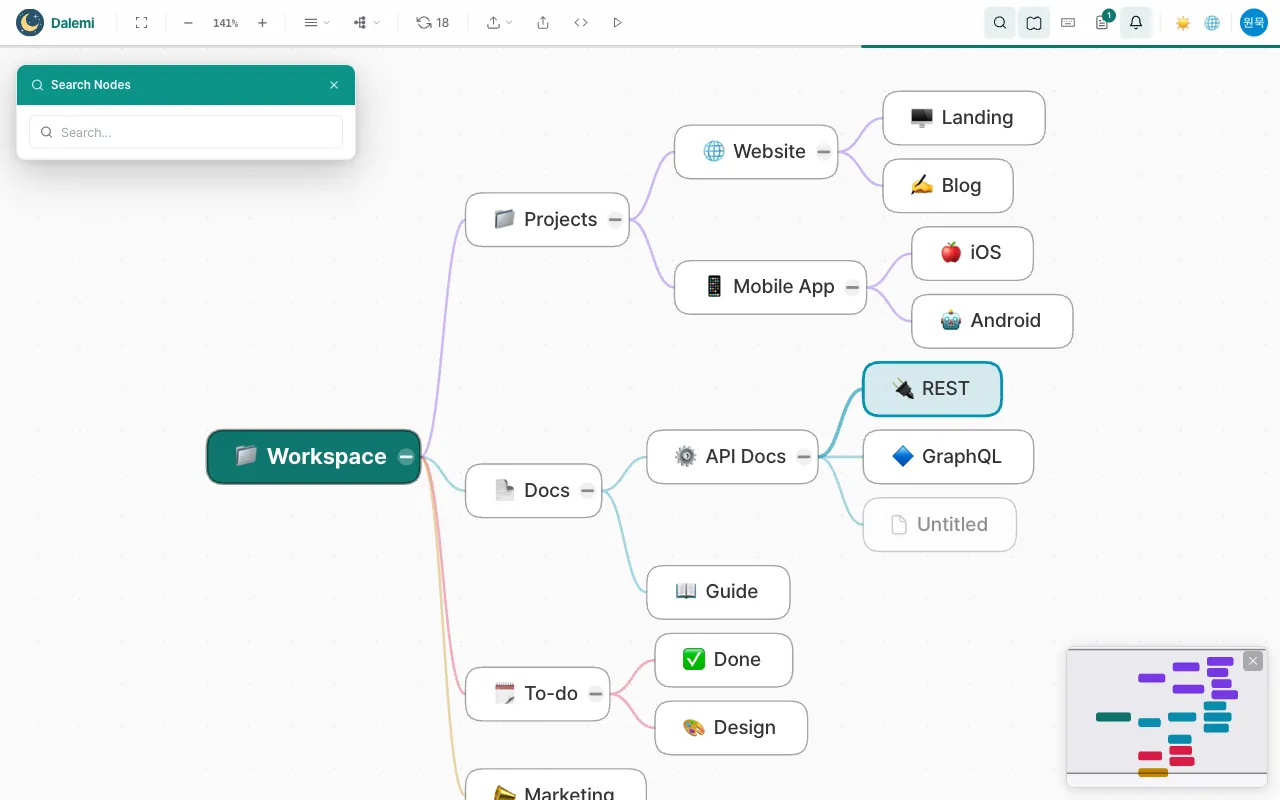
Open search from the toolbar to jump to a node by name. The minimap shows where you are in a large map and lets you drag to pan.
Saving your work
Do my edits save automatically?
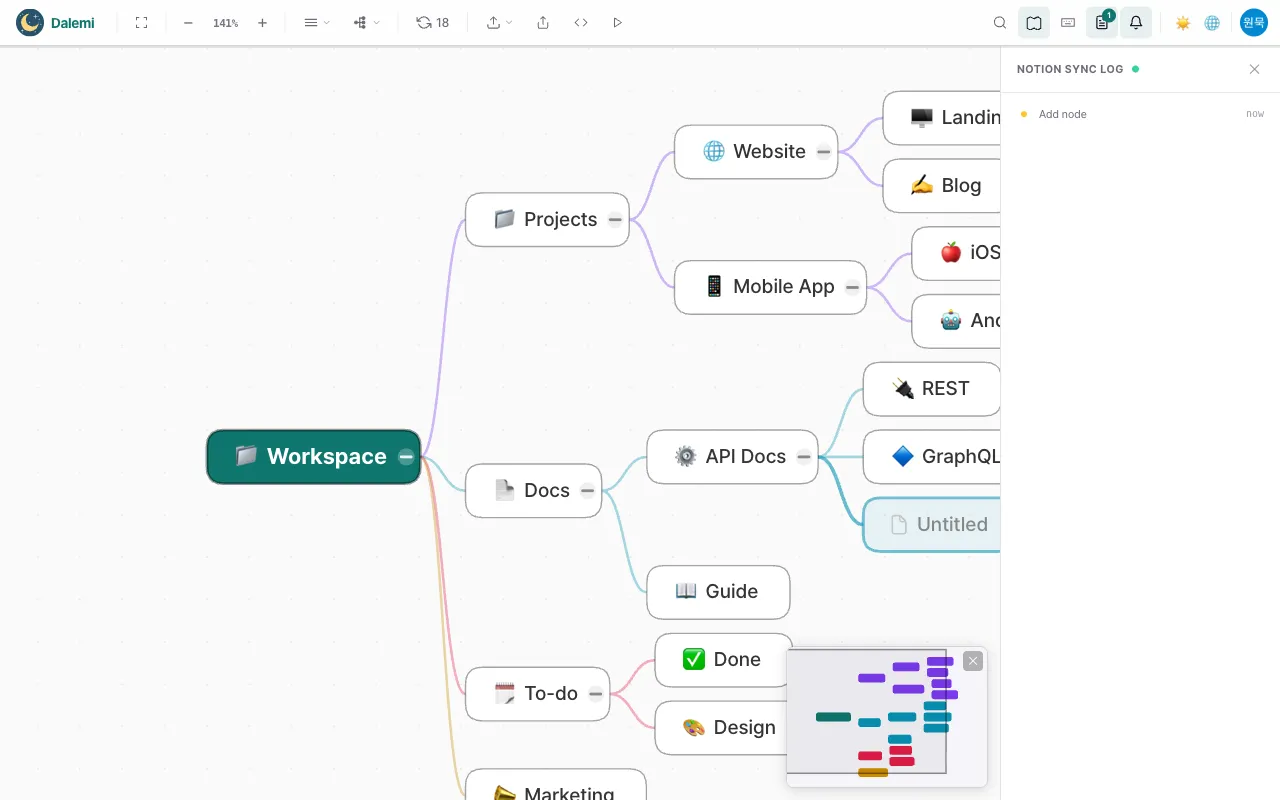
Yes. Every edit — create, rename, icon, move, reorder, delete — is saved to your account right away. The save log panel shows each save as it happens.
Can I open my map on another device?
Yes. Sign in with the same Google account and your maps are there, exactly as you left them.
What if I close the tab while saving?
If saves are still in progress, the browser asks you to confirm before leaving, so no change is lost by accident.
Can I open the same map in two tabs?
You can view it anywhere, but only one tab holds the write session at a time. The other tab will say the map is being edited elsewhere rather than overwrite it.
Sharing, exporting, presenting
Share a read-only link
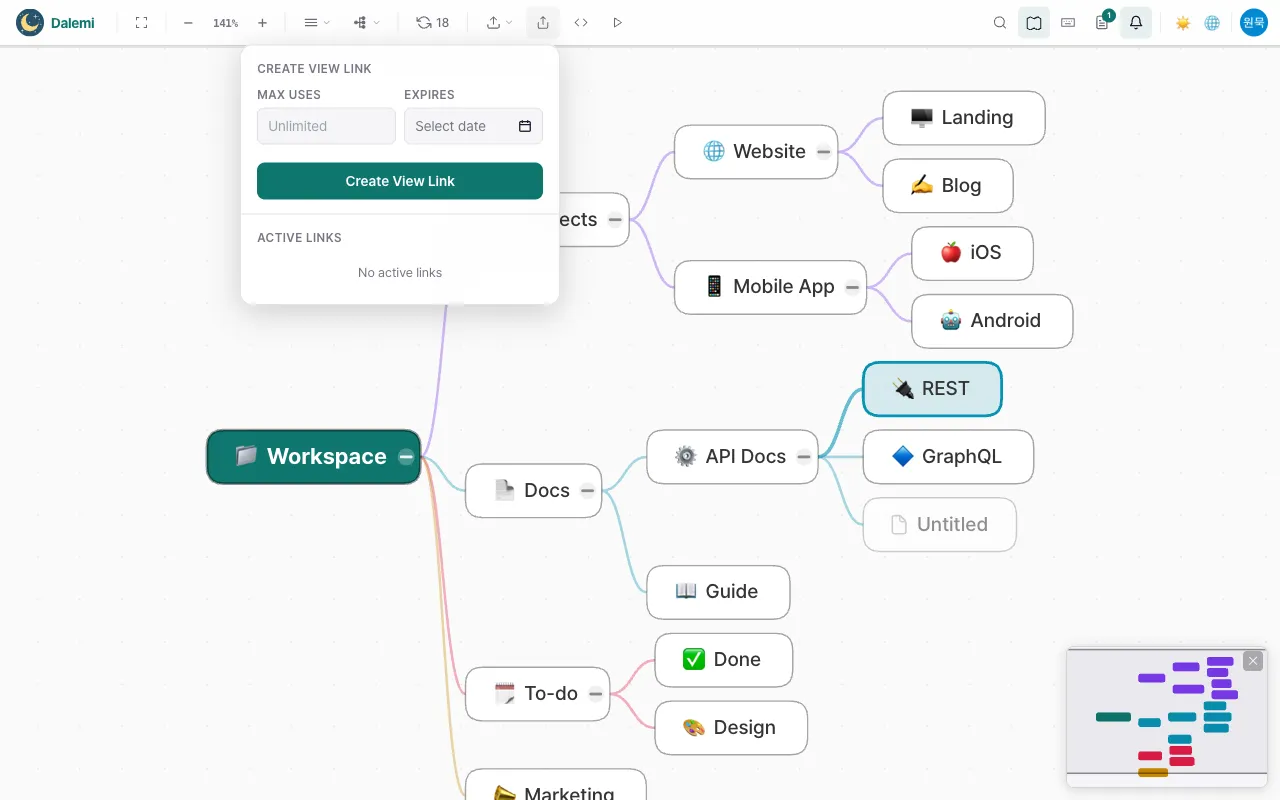
Create a link that lets anyone you send it to open the map. Shared links are always read-only and are available on paid plans.
Limit views or set an expiry
A link can be capped to a number of views or given an expiry date. Once the cap is reached the link stops working.
Embed the map in a website
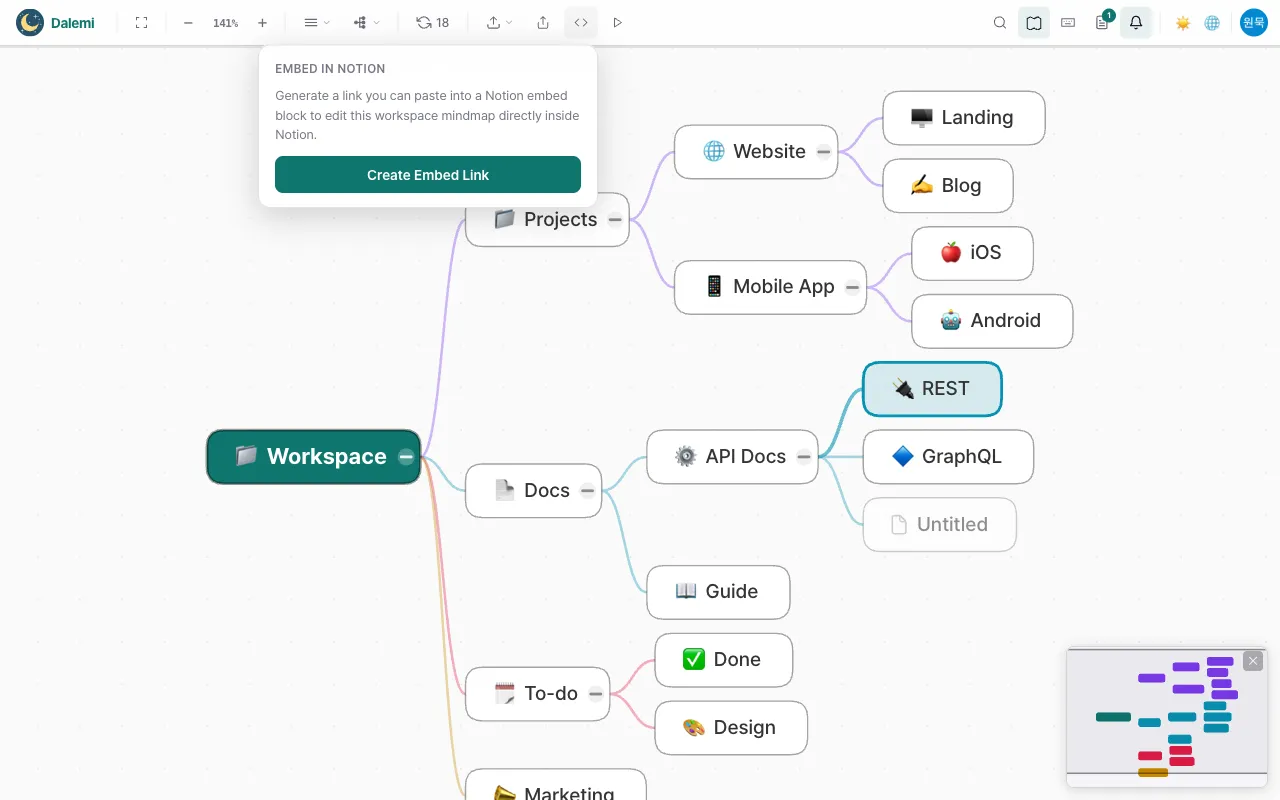
Max plans can embed an editable map into another web page, so you edit the structure without leaving that page.
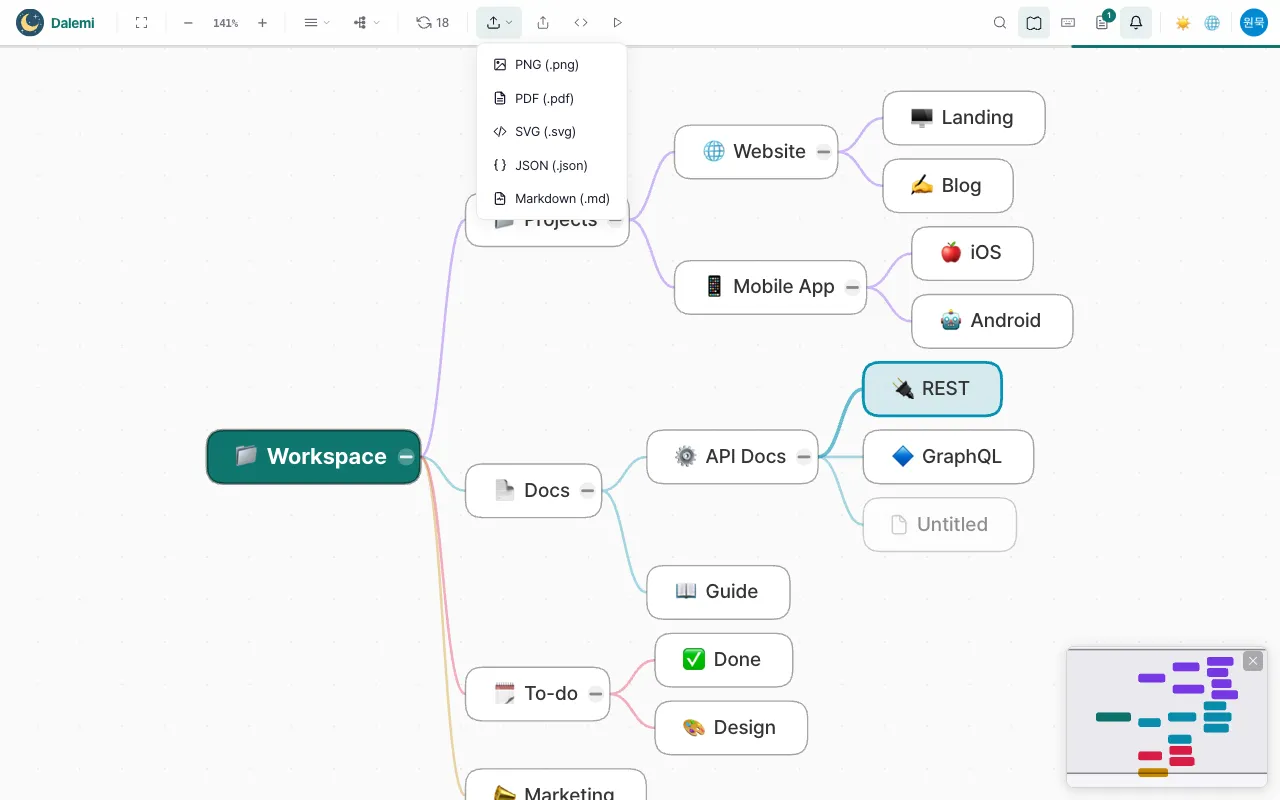
Export the map
PNG, PDF, SVG, JSON and Markdown. Free exports a watermarked PNG plus JSON and Markdown; Pro adds a clean PNG and PDF; SVG is Max only.
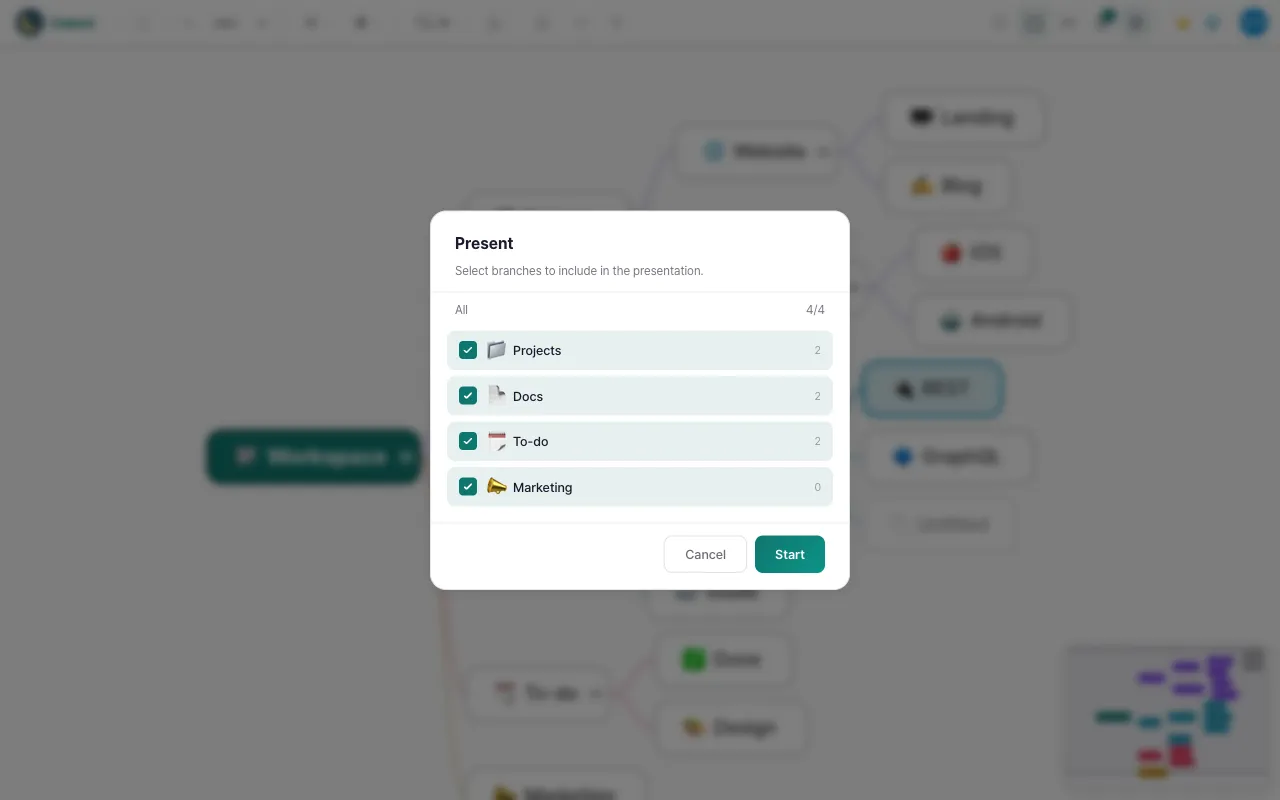
Present it
Presentation mode walks the map branch by branch, full screen. It is part of the paid plans, and Max can also draw on the slides while presenting.
Plans and billing
What does the free plan include?
Up to 50 nodes, the tree layout, PNG with a watermark, JSON and Markdown export, and 30 AI ideas a month. Editing is not limited.
What do paid plans add?
Unlimited nodes, all four layouts, share links, clean exports and presentation. Max adds SVG export, drawing during presentations, website embedding and a larger AI allowance.
How am I charged?
One payment covers one month or one year — it is not a recurring subscription, so nothing is charged again unless you buy another period.
Which currency and methods?
Cards in Korea are billed in Korean won; overseas cards and PayPal are billed in US dollars. The checkout screen always states the amount that will actually be charged.
Cancelling and refunds
A payment can be cancelled within 7 days as long as the period it covers has not started yet. Buying the same plan again extends your remaining time instead of replacing it.
Your account
Where is my data stored?
Your mind maps — node titles, icons and structure — are stored securely in your MainMind account, so you can open them from any device.
Signing out
Use the sign-out item in the profile menu. Signing out ends this session only; your maps stay saved.

Google access
MainMind uses your Google account only to identify you. You can remove MainMind's access from your Google account settings at any time; you just won't be able to sign in until you allow it again.
Closing your account
Delete your account from the profile page. Your account record, saved settings and maps are removed. Note that any paid time you have left is cancelled at the same time.
Getting help
Send a message through the contact section on the home page. Include what you were doing and roughly when, which makes it much faster to track down.